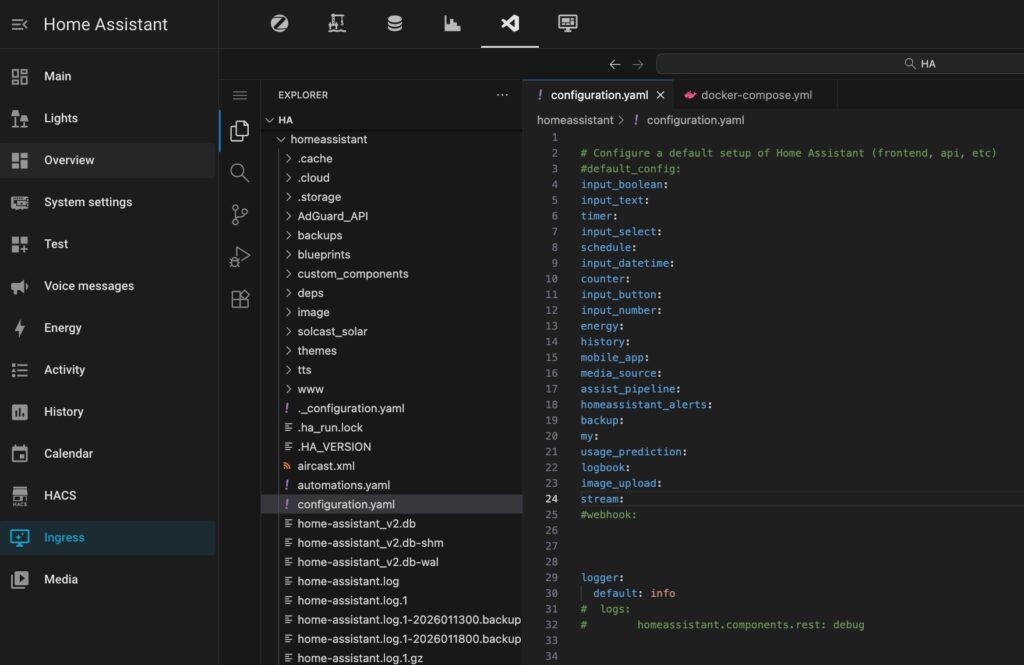
I stuck with the standard File Editor because it’s built specifically for Home Assistant and integrates seamlessly into the UI. However, I eventually discovered a way to run Code-Server within HA using the HACS Ingress integration.
Tools Comparison
| Criterion | HASS Configurator causticlab/hass-configurator-docker | Code-Server linuxserver/code-server |
|---|---|---|
| Integration | ||
| HA sidebar panel | panel_custom + hass_ingressTunnels editor through HA API — no extra port exposed through the reverse proxy. | panel_custom + hass_ingressSame tunnelling requirement. No extra port exposed through the reverse proxy. |
| hass_ingress behaviour | cleanNo internal auth redirect. Renders inside ingress frame without any quirks. | needs auth fixBuilt-in /login redirect breaks inside the ingress frame. Must disable own auth and rely on HA as the auth boundary. |
| Setup effort | lowOne compose service + hass_ingress + panel_custom. No auth quirks to work around. | mediumSame base setup + must resolve auth redirect before the panel renders correctly. |
| RAM footprint | ~30–50 MBLightweight Python/Flask app. Negligible on any hardware including RPi. | ~350–500 MBNode.js + VS Code server process. Significant on RPi 2–4 GB RAM. |
| Auth model | HA token nativeVerifies HA long-lived token directly. No separate credential to manage. | must be disabledOwn password auth must be turned off. HA session via hass_ingress becomes the only auth layer. |
| Editing capabilities | ||
| Editor quality | basic (ACE editor)Syntax highlighting, basic YAML check. No IntelliSense, no extensions, no tabs. | full VS CodeIntelliSense, multi-cursor, split panes, unlimited tabs, all keyboard shortcuts. |
| YAML validation | syntax onlyCatches malformed YAML. No HA schema awareness — won’t warn about wrong keys or invalid entity IDs. | schema-awareHA Config Helper extension → autocomplete for entity IDs, service names, domain keys. Catches errors before HA restart. |
| Multi-file editing | one file at a timeNo tabs. Must navigate back to open another file. | unlimited tabsOpen configuration.yaml, automations.yaml, docker-compose.yaml side by side in split panes. |
| File scope | HA config onlyLocked to single /hass-config mount. Cannot reach docker compose or other host dirs. | any mounted pathMount HA config, docker compose dir, scripts — edit all infrastructure files from one workspace. |
| Terminal & Docker access | ||
| Integrated terminal | noneNo terminal. No way to run commands from the UI. | full bashRun docker compose restart homeassistant, check logs, execute scripts without leaving the sidebar. |
| Docker CLI | not possibleNo path to docker commands from Configurator UI. | via socket mountMount /var/run/docker.sock + install docker CLI — full docker compose, ps, logs from terminal. |
| Git & extensions | noneFixed feature set. No version control, no extensibility of any kind. | full VS Code ecosystemBuilt-in git, YAML linter, Jinja2 highlighting for HA templates, Docker extension. |
Home Assistant Configuration
HACS Ingress integration must be installed to apply the configuration below.
Open HA config file configuration.yaml in any preferable Text Editor and add the following config:
ingress:
  tabs:
    work_mode: custom # MUST
    url: /files/ingress/ha-tabs-ingress.js # MUST
    title: Ingress
    icon: mdi:monitor-shimmer
  code_server:
    parent: tabs
    work_mode: ingress
    ui_mode: toolbar
    title: "Code Server"
    icon: "mdi:microsoft-visual-studio-code"
    url: http://code-server:8080/api/ingress/code_server/
    require_admin: true
⚠️ Explanation.
- The
tabsentry — the container taht doesn’t open an app itself, it creates a tabbed container in the HA sidebar that other panels can live inside. The two lines marked# MUSTare non-negotiable:work_mode: customtells hass_ingress that this panel uses a custom JavaScript frontend module rather than the standard iframe proxy. Without it, the tab container simply won’t render.urlpoints to the JavaScript file that draws the tab UI itself —ha-tabs-ingress.jsis a small frontend script that ships with hass_ingress and handles switching between child panels. It needs to be served from somewhere HA can reach it, typically dropped into yourwww/folder (which maps to/local/in HA) or a custom path like/files/ingress/if you’ve configured a static file server.titleandiconcontrol how the parent entry appears in the sidebar navigation —mdi:monitor-shimmergives it a screen icon from the Material Design icon set.
- The
code_serverentry that actually opens Code-Server. A few things worth unpacking:parent: tabsis what nests this panel inside the tab container defined above rather than adding it as a separate standalone sidebar entry. Without this line, Code-Server would appear as its own independent item in the sidebar instead of as a tab inside the shared container.work_mode: ingressmeans hass_ingress acts as a reverse proxy — all requests to Code-Server are tunnelled through HA’s own API path (/api/hassio_ingress/). This is the key line that lets you access Code-Server through your existing HA reverse proxy without exposing port 8080 separately to the internet.ui_mode: toolbarcontrols how the embedded app is displayed. Thetoolbarmode adds a small top bar inside the panel with the panel title and navigation controls, which gives the embedded Code-Server a slightly more polished feel compared to a raw full-screen iframe.urlpoints to the internal docker network address of the code-server container. The path/api/ingress/code_server/at the end is the ingress token path that hass_ingress generates — it must match the panel name (code_server) exactly or the proxy routing breaks.require_admin: truelocks the panel so only HA admin accounts can open it — a sensible guard given that Code-Server has access to your config files and the docker socket.
The reason for using ingress mode instead of iFrame:
The two entries together solve the reverse proxy problem cleanly. Instead of needing a separate subdomain or port forwarding rule for Code-Server, the entire editor is reachable at your existing HA domain — tunnelled silently through HA’s API. From the browser’s perspective, there is only one domain and one port. Code-Server never needs to be mentioned in your Nginx or Traefik config at all.
Docker Configuration
Next, we’ll add Code-Server to your Home Assistant Docker setup.
⚠️ Important: Before making any changes, ensure you have a complete backup of your current configuration.
Once backed up, open your docker-compose.yml file for editing:
services:

  code-server:
    image: gitpod/openvscode-server:latest
    container_name: code-server
    hostname: code-server
    restart: unless-stopped
    user: "1000:1000"
    command:
      - --host
      - 0.0.0.0
      - --port
      - "8080"
      - --server-base-path
      - /api/ingress/code_server
      - --without-connection-token
      - --default-folder
      - /opt/HA
    ports:
      - "8443:8080"
    volumes:
      - /opt/HA/code-server/data:/home/workspace/.openvscode-server/data
      - /opt/HA:/opt/HA
    environment:
      - TZ=YOUR_TIME_ZONE
    labels:
      - updates2mqtt.name="Code Server Update"
      - updates2mqtt.compose_path=/opt/HA/docker-compose.yml
      - updates2mqtt.picture=https://registry.coder.com/module/code.svg
    networks:
      home_assistant:
        aliases:
          - code-server
        ipv4_address: 172.20.0.4


  home_assistant:
    container_name: ha
    image: "ghcr.io/home-assistant/home-assistant:stable"
    restart: unless-stopped
    hostname: ha
    depends_on:
      - zigbee2mqtt
    volumes:
      - /opt/HA/homeassistant:/config
      - /etc/localtime:/etc/localtime:ro
      - /run/dbus:/run/dbus:ro
    privileged: true
    network_mode: host
    extra_hosts:
      - "code-server:172.20.0.4"
    labels:
      - updates2mqtt.picture=https://www.home-assistant.io/images/favicon.ico
      - updates2mqtt.name="HA Update"
      - updates2mqtt.compose_path=/opt/HA/docker-compose.yml

networks:
  proxy:
    external: true
  home_assistant:
    driver: bridge
    enable_ipv6: false
    name: home_assistant
    ipam:
      config:
        - subnet: 172.20.0.0/16
⚠️ Explanation
Code Server config:
  code-server:
    image: gitpod/openvscode-server:latest
    container_name: code-server
    hostname: code-server
    restart: unless-stopped
    user: "1000:1000"
- This uses the
gitpod/openvscode-serverimage rather than the more commonly seenlinuxserver/code-server. The key difference is that OpenVSCode Server is the upstream open-source project from Gitpod — it’s a clean, minimal VS Code server without any Coder-specific wrapping. Thelatesttag means it always pulls the newest release on container restart. - The container runs as user ID 1000 and group ID 1000 rather than as root. This is a security-conscious choice — it means the process only has standard user permissions inside the container, and any files it creates in mounted volumes are owned by UID 1000 on the host rather than by root.
command:
  - --host
  - 0.0.0.0
  - --port
  - "8080"
  - --server-base-path
  - /api/ingress/code_server
  - --without-connection-token
  - --default-folder
  - /opt/HA
This block is where the ingress integration is wired up at the application level. Each argument deserves its own explanation:
--host 0.0.0.0 tells the server to listen on all network interfaces inside the container, not just localhost. Without this, the container would only accept connections from within itself.
--port 8080 sets the listening port. Note that this is the internal container port — the ports mapping below translates it to 8443 on the host.
--server-base-path /api/ingress/code_server is the critical line that makes hass_ingress work. When hass_ingress proxies requests to Code-Server, all URLs arrive with this prefix. By telling Code-Server that its base path is that prefix, every internal link, asset, and redirect it generates will include it automatically. This is what prevents the broken asset URLs that plague Code-Server when running behind a sub-path proxy.
--without-connection-token disables Code-Server’s own token-based authentication. This is intentional — authentication is handled entirely by HA’s session via hass_ingress, so a second layer of auth would just block the ingress proxy from connecting.
--default-folder /opt/HA opens Code-Server with your HA directory already loaded in the file explorer, so you land directly in your working directory rather than an empty workspace.
⚠️ Replace /opt/HA with your actual HA directory!!!!!
ports:
  - "8443:8080"
Exposes port 8080 inside the container as port 8443 on the host. This gives you a direct fallback URL (https://your-server:8443) for accessing Code-Server without going through HA — useful for initial setup or troubleshooting when the ingress panel isn’t working yet.
    environment:
      - TZ=YOUR_TIME_ZONE
Replace with your actual time zone.
volumes:
  - /opt/HA/code-server/data:/home/workspace/.openvscode-server/data
  - /opt/HA:/opt/HA
Two mounts. The first persists VS Code’s internal data — installed extensions, user settings, keybindings — so they survive container recreations. Without this mount, you’d lose all your extensions every time you pulled a new image. The second mount makes the entire /opt/HA directory on the host available inside the container at the same path, which is why --default-folder /opt/HA works — the paths match on both sides.
⚠️ Replace /opt/HA with your actual HA directory!!!!!
labels:
  - updates2mqtt.name="Code Server Update"
  - updates2mqtt.compose_path=/opt/HA/docker-compose.yml
  - updates2mqtt.picture=https://registry.coder.com/module/code.svg
These labels are consumed by the updates2mqtt integration — a separate tool that monitors your containers for new image versions and publishes update notifications to MQTT, which HA can then pick up as sensors. The labels tell it the container’s friendly name, where the compose file lives, and what image to use in the HA notification card.
⚠️ You can configure the updates2mqtt integration by following the guide in this article; otherwise, feel free to omit this block from your configuration.
networks:
  home_assistant:
    aliases:
      - code-server
    ipv4_address: 172.20.0.4
Code-Server gets a fixed IP address on the home_assistant bridge network and registers the hostname code-server as a DNS alias. This fixed IP is important — it’s what the HA service references in extra_hosts below to resolve the code-server hostname.
⚠️ You have to add the corresponding network configuration to your other integrations, e.g., Zigbee2MQTT, MQTT brocker, etc.
Home Assistant config:
    depends_on:
      - zigbee2mqtt
Include any containers here that must be started before Home Assistant. If your setup doesn’t require these dependencies, you can safely omit this block.
volumes:
  - /opt/HA/homeassistant:/config
  - /etc/localtime:/etc/localtime:ro
  - /run/dbus:/run/dbus:ro
/config is the standard HA configuration directory mount. /etc/localtime syncs the container’s timezone with the host. /run/dbus gives HA access to the host’s D-Bus, needed for Bluetooth integrations. /BACKUP mounts a backup directory as /media inside the container, making it available to HA’s built-in backup system.
⚠️ Replace /opt/HA with your actual HA directory!!!!!
privileged: trueGrants the HA container elevated kernel capabilities — required for Bluetooth access, certain USB device integrations, and D-Bus communication. It’s a broad permission grant and worth noting in any security review, but it’s effectively unavoidable for a full-featured HA install.
network_mode: hostHA runs in host networking mode — it binds directly to the host machine’s network stack rather than a docker bridge. This is common for HA because it needs to discover devices on the local network via mDNS, Bluetooth, and other broadcast protocols that don’t work reliably through docker NAT. The downside is that a host-networked container cannot natively reach other containers on bridge networks by their docker hostnames.
extra_hosts:
  - "code-server:172.20.0.4"
This is the bridge that solves the host networking limitation. Because HA can’t use docker’s internal DNS to find code-server (it’s on a bridge network while HA is on the host network), this line injects a static /etc/hosts entry inside the HA container — mapping the hostname code-server to the fixed IP 172.20.0.4. This is exactly why the fixed IP was assigned to Code-Server above — the two entries are a matched pair.
⚠️ Don’t forget to add all other services of your HA docker setup.
networks:
  home_assistant:
    driver: bridge
    ipam:
      config:
        - subnet: 172.20.0.0/16
A custom bridge network with a manually defined subnet. Using a fixed subnet rather than letting Docker assign one automatically ensures that container IPs stay stable across host reboots and Docker daemon restarts — which is what makes the fixed 172.20.0.4 assignment reliable rather than coincidental.
The proxy network is declared as external: true, meaning it’s managed outside this compose file — typically by a Traefik or Nginx Proxy Manager container that handles incoming internet traffic and forwards it to HA.
Get It Started
Once you’ve applied those changes, it’s time to launch your new configuration:
sudo docker compose up -d --remove-orphansYou can now access your Code-server directly within the Home Assistant Ingress panel, as shown in the image at the top of this article.
Additionally, it is accessible by URL http://YOUR_HA_SERVER_IP:8443