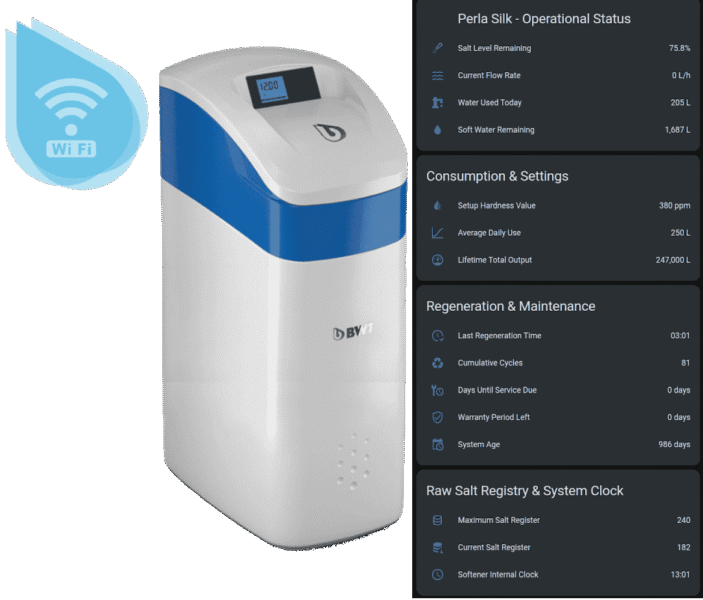
If you own a BWT Perla Silk water softener and run Home Assistant, you’ve probably already discovered that there’s no official integration — and most guides online only cover the UK market variant. The good news? The EU firmware has a fully working local REST API that nobody has documented yet. This article is the result of reverse-engineering it from scratch.
No cloud dependency. No HACS workarounds. Just a direct local connection to your softener.
The Problem with Existing Solutions
There is a HACS integration called ha-bwt-perla by dkarv, and it’s excellent — but it was built around the UK Perla Silk firmware. The EU market firmware (version 2.03xx, sold in Poland, Germany, Czech Republic, and most of continental Europe) has a completely different API structure. The UK integration simply won’t detect it.
The Perla One and Perla Duplex models have their own separate API on port 8080, which requires a login code received by email. The Silk — both UK and EU — uses a different, unauthenticated API on port 80. What I discovered is that the EU Silk exposes a React-based web interface at /web/ and a set of REST endpoints that map directly to the softener’s internal registers.
Nobody had documented the EU register map before. Until now.
Goal
After spending an evening with curl, some basic API probing, and cross-referencing the bwt_api Python library source code, I managed to:
- Confirm the local API is accessible with no authentication
- Decode the register map and match each index to a real value
- Set up REST sensors and template sensors in Home Assistant
- Get salt level, remaining capacity, daily water usage, flow rate, and more
Prerequisites
- BWT Perla Silk WiFi (EU market, firmware 2.03xx)
- Home Assistant with a working network connection to your softener
- Basic familiarity with
configuration.yaml
Step 1 — Find Your Softener's IP Address
The device connects to your WiFi during setup via the BWT app. Check your router’s DHCP lease table for a device with a hostname like BWT or look at the recently connected devices list.
Don’t forget to make that address static.
You can also scan your network directly from the Home Assistant terminal:
nmap -p 80 192.168.x.0/24 --openStep 2 — Verify the Local API
Before touching any HA config, confirm the API is working with a simple curl command:
curl -s http://YOUR_IP/silk/registers | python3 -m json.toolYou should get a JSON response like this:
{
    "params": [0, -1, 17, 26, 380, 38, 21, 3, 1, 9, 8, 1, 36, 4, 250, 2467, 0, 985, 0, 81, 40, 0, 100, 1955, 19, 20, 90, 2, 2, 0, 240, 182, 30, 0, 0, 1, -1, -1, 4, 0, 1, 25, 317, -1, -1, -1, -1, 0]
}
If you see that array — you’re in. The entire integration is built from this single endpoint.
Also check the device status endpoint while you’re at it:
curl -s http://YOUR_IP/silk/status | python3 -m json.toolThis returns firmware version, uptime, network status, and cloud registration info. Useful for confirming you have the right firmware.
💡 All endpoints use plain HTTP on port 80. No HTTPS, no authentication headers, no tokens. The EU Perla Silk firmware trusts its local network completely.
Step 3 — Understanding the Register Map
The params array is a flat list of integers. Each index corresponds to a specific softener parameter. After extensive testing and cross-referencing with the bwt_api Python library source, here is the complete decoded register map for firmware 2.03xx:
| Index | Value (example) | Meaning | Notes |
|---|---|---|---|
| 2 | 17 | Current hour | Clock value, not useful |
| 3 | 26 | Current minute | Clock value, not useful |
| 4 | 380 | Water hardness in ppm CaCO3 | Divide by 17.85 to get dH |
| 7 | 3 | Last regeneration — hour | |
| 8 | 1 | Last regeneration — minute | |
| 14 | 250 | Average daily usage | Litres per day |
| 15 | 2467 | Total lifetime output (×100) | Multiply by 100 for litres |
| 16 | 0 | Current flow rate (×60) | Multiply by 60 for l/h |
| 17 | 985 | Days in service | |
| 18 | 0 | Warranty days remaining | 0 = expired |
| 19 | 81 | Total regeneration count | Number of recharges since setup |
| 23 | 1955 | Remaining capacity | Litres before next regeneration |
| 25 | 20 | Dwell duration | Minutes |
| 26 | 90 | Brine duration | Minutes |
| 30 | 240 | Salt capacity | Max value for % calculation |
| 31 | 182 | Salt remaining | Current value for % calculation |
| 34 | 0 | Days until service | 0 = service overdue |
| 42 | 317 | Today’s water usage | Litres |
⚠️ Salt level calculation: The BWT app shows salt level as a percentage in 10% steps. The actual value is params[31] / params[30] * 100. In the example above: 182 / 240 * 100 = 75.8%. This is more accurate than what the app shows.
⚠️ Total output: params[15] * 100 gives total lifetime litres processed. In the example: 2467 * 100 = 246,700 litres. Use this value as the water source in the HA Energy dashboard.
⚠️ Register indices 0, 1, 5, 6, 9, 12, 20, 21, 22, 24, 29, 32, 33, 35–41, 43–47 are still not fully decoded. They appear in the source code of the ha-bwt-perla integration as UnknownSensor entries — meaning even the developer hasn’t mapped them yet.
Step 4 — REST Sensor Configuration
Add this config to your configuration.yaml:
rest:
 - resource: "http://YOUR_IP/silk/registers"
   method: GET
   scan_interval: 60
   sensor:
      - name: "Perla Current Time" # params[2] & params[3]
        icon: mdi:clock-outline
        value_template: >
          {{ "%02d:%02d" | format(value_json.params[2] | int(0), value_json.params[3] | int(0)) }}

      - name: "Perla Water Hardness" # params[4]
        unit_of_measurement: "ppm"
        icon: mdi:water-opacity
        value_template: "{{ value_json.params[4] | int(0) }}"

      - name: "Perla Last Regeneration Time" # params[7] & params[8]
        icon: mdi:clock-check-outline
        value_template: >
          {{ "%02d:%02d" | format(value_json.params[7] | int(0), value_json.params[8] | int(0)) }}

      - name: "Perla Average Daily Usage" # params[14]
        unit_of_measurement: "L"
        icon: mdi:chart-bell-curve-cumulative
        device_class: water
        value_template: "{{ value_json.params[14] | int(0) }}"

      - name: "Perla Total Output" # params[15]
        unit_of_measurement: "L"
        icon: mdi:gauge
        device_class: water
        state_class: total_increasing
        value_template: "{{ value_json.params[15] | int(0) * 100 }}"

      - name: "Perla Current Flow" # params[16]
        unit_of_measurement: "L/h"
        icon: mdi:waves
        device_class: volume_flow_rate
        value_template: "{{ value_json.params[16] | int(0) * 60 }}"

      - name: "Perla Days In Service" # params[17]
        unit_of_measurement: "days"
        icon: mdi:calendar-clock
        value_template: "{{ value_json.params[17] | int(0) }}"

      - name: "Perla Warranty Days Remaining" # params[18]
        unit_of_measurement: "days"
        icon: mdi:shield-check-outline
        value_template: "{{ value_json.params[18] | int(0) }}"

      - name: "Perla Total Regenerations" # params[19]
        icon: mdi:recycle
        value_template: "{{ value_json.params[19] | int(0) }}"

      - name: "Perla Remaining Capacity" # params[23]
        unit_of_measurement: "L"
        icon: mdi:water
        device_class: water
        value_template: "{{ value_json.params[23] | int(0) }}"

      - name: "Perla Max Salt Capacity Units" # params[30]
        icon: mdi:database-outline
        value_template: "{{ value_json.params[30] | int(0) }}"

      - name: "Perla Salt Remaining Units" # params[31]
        icon: mdi:database-arrow-down
        value_template: "{{ value_json.params[31] | int(0) }}"

      - name: "Perla Salt Level" # Derived from params[30] & params[31]
        unit_of_measurement: "%"
        icon: mdi:shaker-outline
        value_template: >
          {% set cap = value_json.params[30] | int(0) %}
          {% set rem = value_json.params[31] | int(0) %}
          {{ (rem / cap * 100) | round(1) if cap > 0 else 0 }}

      - name: "Perla Days Until Service" # params[34]
        unit_of_measurement: "days"
        icon: mdi:wrench-clock
        value_template: "{{ value_json.params[34] | int(0) }}"

      - name: "Perla Today Usage" # params[42]
        unit_of_measurement: "L"
        icon: mdi:water-pump
        device_class: water
        state_class: total_increasing
        value_template: "{{ value_json.params[42] | int(0) }}"
⚠️ rest: directive is needed if you add you first REST API sensor. otherwise skip it.
Replace YOUR_IP with your softener’s IP address. Consider assigning a static IP in your router’s DHCP settings to avoid it changing.
Step 6 — Dashboard Card
Now add a manual type of lovelance card to your dashboard and add the following YAML code:
type: vertical-stack
cards:
  - type: entities
    title: Perla Silk - Operational Status
    icon: mdi:water-softener
    show_header_toggle: false
    entities:
      - entity: sensor.perla_salt_level
        name: Salt Level Remaining
      - entity: sensor.perla_current_flow
        name: Current Flow Rate
      - entity: sensor.perla_today_usage
        name: Water Used Today
      - entity: sensor.perla_remaining_capacity
        name: Soft Water Remaining
  - type: entities
    title: Consumption & Settings
    show_header_toggle: false
    entities:
      - entity: sensor.perla_water_hardness
        name: Setup Hardness Value
      - entity: sensor.perla_average_daily_usage
        name: Average Daily Use
      - entity: sensor.perla_total_output
        name: Lifetime Total Output
  - type: entities
    title: Regeneration & Maintenance
    show_header_toggle: false
    entities:
      - entity: sensor.perla_last_regeneration_time
        name: Last Regeneration Time
      - entity: sensor.perla_total_regenerations
        name: Cumulative Cycles
      - entity: sensor.perla_days_until_service
        name: Days Until Service Due
      - entity: sensor.perla_warranty_days_remaining
        name: Warranty Period Left
      - entity: sensor.perla_days_in_service
        name: System Age
  - type: entities
    title: Raw Salt Registry & System Clock
    show_header_toggle: false
    entities:
      - entity: sensor.perla_max_salt_capacity_units
        name: Maximum Salt Register
      - entity: sensor.perla_salt_remaining_units
        name: Current Salt Register
      - entity: sensor.perla_current_time
        name: Softener Internal Clock
⚠️ rest: directive is needed if you add you first REST API sensor. otherwise skip it.
Replace YOUR_IP with your softener’s IP address. Consider assigning a static IP in your router’s DHCP settings to avoid it changing.
Step 7 — Salt Level Alert Automation
Use that example of automation as an inspiration:
automation:
  - alias: "Perla Silk — Low Salt Alert"
    id: perla_silk_low_salt_alert
    trigger:
      - trigger: numeric_state
        entity_id: sensor.perla_salt_level
        below: 25
    condition:
      - condition: time
        after: "08:00:00"
        before: "21:00:00"
    action:
      - action: notify.mobile_app_your_phone
        data:
          title: "⚠️ BWT Perla — Low Salt"
          message: >
            Salt level is at {{ states('sensor.perla_salt_level') }}%.
            Remaining capacity: {{ states('sensor.perla_remaining_capacity') }} L.
            Please refill the salt container.
⚠️ rest: directive is needed if you add you first REST API sensor. otherwise skip it.
Replace YOUR_IP with your softener’s IP address. Consider assigning a static IP in your router’s DHCP settings to avoid it changing.
Step 8 — Energy Dashboard Integration
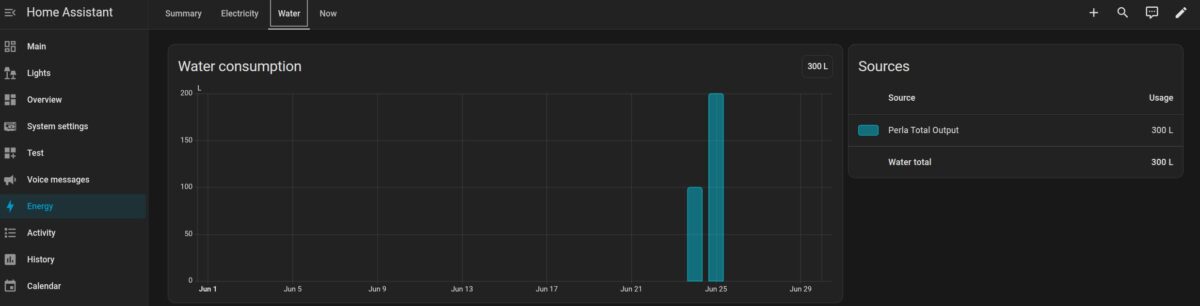
The sensor.perla_total_output sensor has state_class: total_increasing, which means Home Assistant can track it over time. You can add it to the Energy dashboard as a water consumption source:
Settings → Energy → Water consumption → Add water source → select sensor.perla_total_output.
This gives you daily, monthly, and yearly water usage graphs directly in the HA Energy dashboard without any extra configuration.
What Doesn't Work
To be transparent about the current limitations:
No write operations confirmed. The JS bundle contains an endpoint called /silk/resetDeviceState, and /device/config appears in the source. However, all POST attempts return 404 or empty responses. Starting a manual regeneration remotely is not yet possible through the local API. If you find working write endpoints, I’d love to know.
Flow rate is polling-based. The softener updates params[16] roughly every 30 seconds internally. Short bursts of water usage (flushing a toilet, quick hand wash) may not be captured if they finish between polling cycles. The scan_interval: 60 in the REST sensor means you might miss even more. For automation purposes this is fine — it’s more useful for detecting sustained flow (running taps, filling a bathtub) than counting every brief draw.
Conclusion
The BWT Perla Silk WiFi on EU firmware exposes a fully functional, unauthenticated local REST API that Home Assistant can read directly over your home network. No cloud proxy, no HACS requirement, no special firmware needed — it works out of the box on firmware 2.03xx.
With the REST sensor and template sensors from this article, you get real-time salt level, remaining capacity, daily water usage, flow rate, incoming water hardness, and lifetime output — all as proper HA entities that can trigger automations, appear on dashboards, and feed into the Energy dashboard.
The write API remains a mystery for now, but with the read API fully working and the register map decoded, this is already a significantly more capable integration than anything previously documented for the EU Perla Silk.